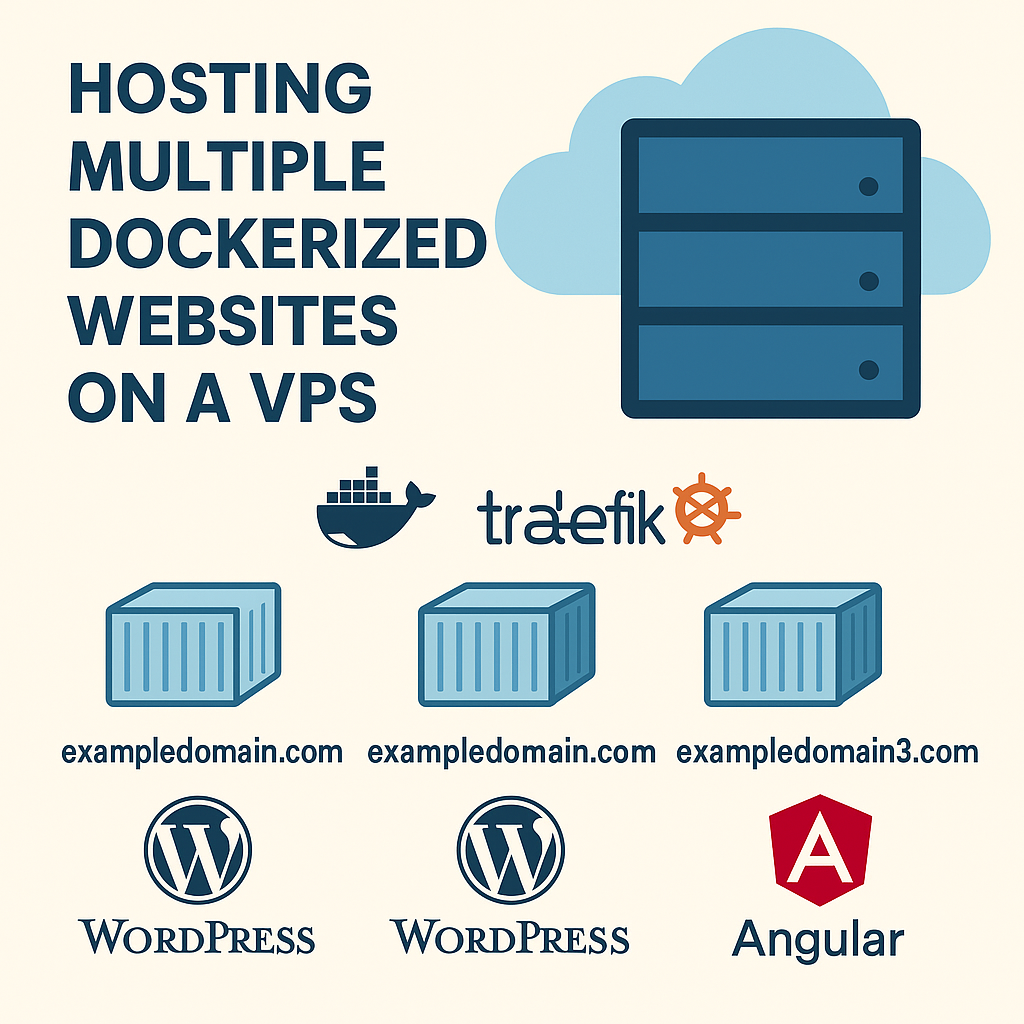
Setting up multiple independent websites on a single VPS can feel like juggling fire — but with Docker and Traefik, it’s not only possible, it’s elegant. In this guide, I’ll walk you through how I hosted:
- A WordPress site at exampledomain.com
- Another WordPress site at exampledomain2.com
- An Angular site at exampledomain3.com
All running alongside an n8n automation workflow — with Traefik managing SSL certificates for each site, and everything containerized using Docker Compose.
🔧Step 1: Point Your Domains to Your VPS
Using your domain registrar, create an A-record for each domain:
exampledomain.com → your VPS IPexampledomain2.com → your VPS IPexampledomain3.com → your VPS IP
No need to handle DNS for www. unless you want it — we’ll address that with redirects later.
📁 Step 2: Prepare Your VPS
Install Docker and Docker Compose if you haven’t:
sudo apt update
sudo apt install -y docker.io docker-compose
Create directories for each site:
sudo mkdir -p /srv/wordpress/exampledomain
sudo mkdir -p /srv/wordpress/exampledomain2
sudo mkdir -p /srv/angular/exampledomain3/dist
sudo chown -R $USER:$USER /srv
And set up a .env file for your global config:
cat > .env <<EOF
SSL_EMAIL=you@example.com
DOMAIN_NAME=exampledomain.com
GENERIC_TIMEZONE=America/New_York
EOF
📁 Step 2: Prepare Your VPS
Install Docker and Docker Compose if you haven’t:
bashCopyEditsudo apt update
sudo apt install -y docker.io docker-compose
Create directories for each site:
sudo mkdir -p /srv/wordpress/exampledomain
sudo mkdir -p /srv/wordpress/exampledomain2
sudo mkdir -p /srv/angular/exampledomain3/dist
sudo chown -R $USER:$USER /srv
And set up a .env file for your global config:
cat > .env <<EOF
SSL_EMAIL=you@example.com
DOMAIN_NAME=exampledomain.com
GENERIC_TIMEZONE=America/New_York
EOF
🚀 Step 3: Build and Deploy Your Angular App
If you’re deploying an Angular site:
git clone https://github.com/your-angular-repo.git
cd your-angular-repo
npm install
npm run build --prod
cp -r dist/your-app-name/* /srv/angular/exampledomain3/dist/
🐳 Step 4: Add Sites to Docker Compose
Extend your docker-compose.yml to include:
- MySQL + WordPress for both domains
- An Nginx container to serve Angular
- Traefik labels for automatic SSL and routing
You’ll end up with services like wp_example, wp_example2, and exampledomain3, each with its own volume and DB.
🔐 Step 5: Add Redirects for WWW Domains
Here’s the gem 💎: I wanted https://www.exampledomain2.com to redirect to https://exampledomain2.com.
With Traefik, it’s as simple as adding this to the labels block:
- traefik.http.routers.wp_example2_www.rule=Host(`www.exampledomain2.com`)
- traefik.http.routers.wp_example2_www.middlewares=redirect-to-root
- traefik.http.middlewares.redirect-to-root.redirectregex.regex=^https://www\.exampledomain2\.com/(.*)
- traefik.http.middlewares.redirect-to-root.redirectregex.replacement=https://exampledomain2.com/$$1
- traefik.http.middlewares.redirect-to-root.redirectregex.permanent=true
💥 Result: www.exampledomain2.com now redirects perfectly without breaking HSTS or SSL.
✅ Step 6: Launch and Go Live
docker-compose down
docker-compose up -d
Your sites are now:
- SSL-protected
- Auto-renewing via Let’s Encrypt
- Neatly containerized
- Redirecting with finesse
🎉 Hardware used
This is some of the hardware I used to test this locally before going to my VPS:
Raspberry Pi 4 8GB with Retroflag NesPi 4 case connected to the network using a NETGEAR 8 Port Gigabit Ethernet hub
“As an Amazon Associate I earn from qualifying purchases from above links”
Full Affiliate Disclosure
🎉 Final Thoughts
This setup keeps everything organized, secure, and highly maintainable. Whether you’re hosting client projects or personal sites, running multiple websites from one VPS has never been easier — or more fun.